![pax2pay-dark-symbol 300dpi.png]](https://support.pax2pay.com/hs-fs/hubfs/pax2pay-dark-symbol%20300dpi.png?height=50&name=pax2pay-dark-symbol%20300dpi.png)
We’re reaching out to existing customers to start the migration to our new Payments Room. If you haven't been contacted yet and would like more information, please get in touch with our support team - they’ll be happy to help!
Key Features
- Customisable Metadata: Set preferred metadata formats by order or request custom adjustments.
- Advanced Search: Locate transactions faster with enhanced filtering.
- Post-Creation Updates: Modify booking information after a virtual card is created.
- Improved Batch Payments: The ability to create the batch file directly from the portal.
How to Create a Virtual Card in the portal
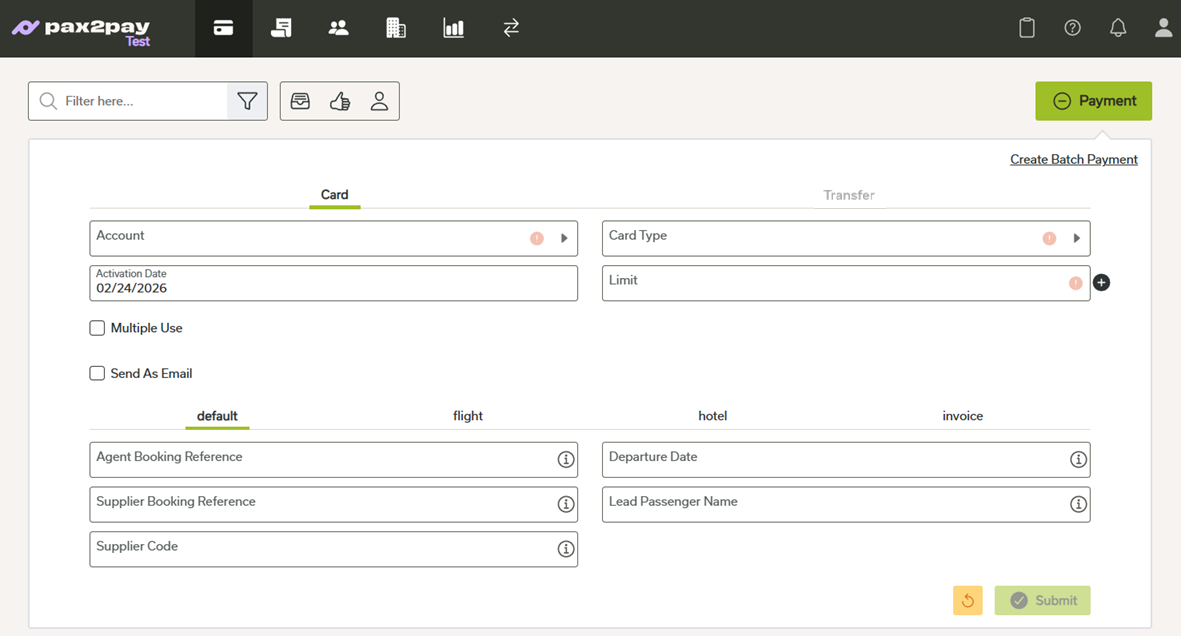
- Enter the Payments Room: Click the card icon in the top navigation menu.
- Initiate Payment: Select the Payment button in the top-right corner.
- Select Funding: Choose your preferred Account and Card Type.
- Usage Settings: Select Single/Multi use depending on the usage of the card.
- Enter Booking Data: Select your organisation’s specific format (e.g., Invoice, Flights, Hotel) and complete the required fields.
- Select Submit.
Please note: there are currently no changes to creating cards via the API.
Customisable Metadata Templates
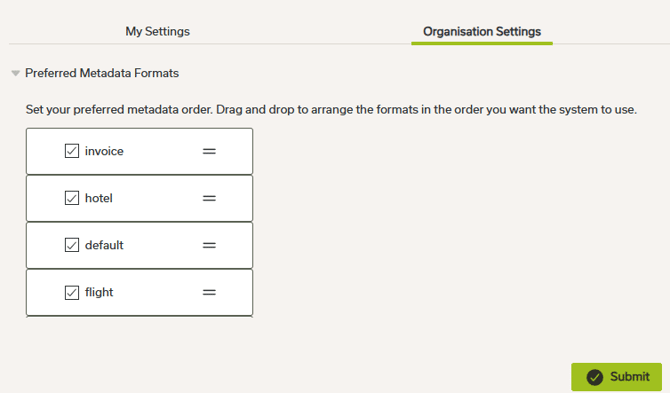
In the new Payments Room, System Admins have more control over the virtual card creation process. You can now:
- Limit Visibility: Display only the metadata formats required for your workflow.
- Reorder Fields: Customize the sequence in which metadata fields appear.
Custom Metadata Templates
We now offer fully customisable templates and input fields, available upon request. These custom fields are fully integrated into your reconciliation reports, ensuring end-to-end traceability for every payment on the platform.
Advanced Payment Search
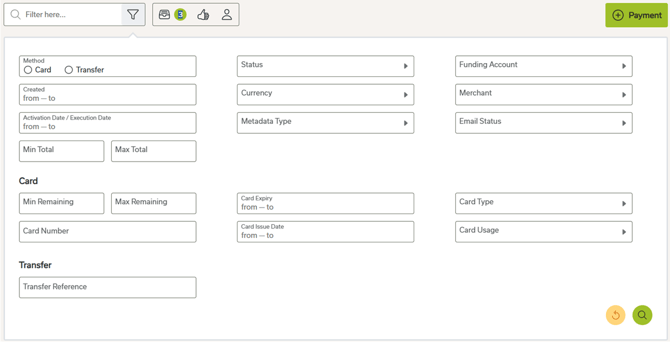
Locate transactions faster with our enhanced search functionality. This tool provides comprehensive filtering for payments made via both the Portal and API.
How to filter your results:
- Open Filters: Click the filter icon at the top of the page.
- Define Criteria: Apply specific conditions such as Payment Method, Card Status, or Date Range.
- Execute Search: Click the magnifying glass icon in the bottom right to refresh your results.
New Card Statuses
We’ve made some changes to our card statuses to provide a clearer understanding of the card lifecycle. A detailed explanation of the new statuses is provided below.

 - Confirms that a card has been successfully sent to your supplier.
 - A card has been scheduled for a future date.
 - A card was rejected by an approver.
 - A card has a declined authorisation.
The new Payments Room includes enhanced features such as Merchant Locking (currently available for GBP UK accounts). the option to pay suppliers via outbound transfers, and the ability to process multiple payments at once using the batch payment feature.
If you would like access to the new Payments Room or any of the features mentioned above, please submit a ticket with our customer support team here or reach out to your account manager.