![pax2pay-dark-symbol 300dpi.png]](https://support.pax2pay.com/hs-fs/hubfs/pax2pay-dark-symbol%20300dpi.png?height=50&name=pax2pay-dark-symbol%20300dpi.png)
Important: 2FA becomes mandatory for all users in the first week of November 2026.
From November 2026, everyone with access to the Pax2pay customer portal must use 2FA. If you haven’t set it up by then, you’ll be asked to do so the next time you log in. You won’t be able to access the portal until setup is complete.
What is 2FA?
Two-factor authentication (2FA) adds an extra layer of security to your account. When 2FA is enabled, you’ll need your username and password plus a code from an authenticator app on your phone to log in to the Pax2pay portal. Even if your login details are compromised, no one else can get into your account.
What you’ll need
A free authenticator app on your phone, such as Google Authenticator, Microsoft Authenticator or Authy. All three are available on iOS and Android.
How to set up 2FA
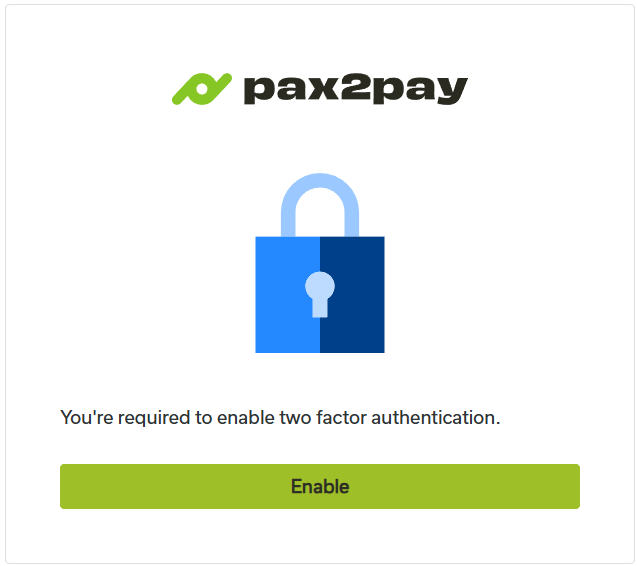
Once 2FA is enabled on your account, you’ll see the setup screen below the next time you log in.
Once you press enable, you’ll see the following screen:
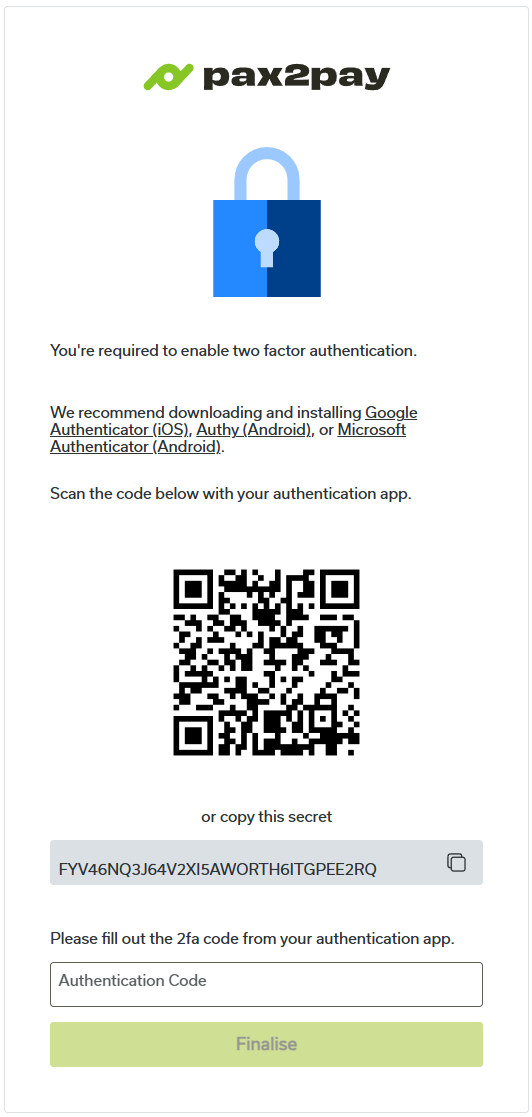
Set up 2FA on your phone
- Download an authenticator app from your phone’s app store, if you don’t already have one.
- Add your Pax2pay account to the app by scanning the QR code on screen with your phone’s camera, or by entering the secret key manually.
- Verify your setup by entering the code shown in your authenticator app, then select Finalise.
- Save your backup codes somewhere secure. They’re only shown once, and each code can only be used once. You’ll need them if you lose access to your phone.
Set up 2FA on your desktop (alternative method)
If you’re unable to use a mobile device or prefer to use 2FA on your desktop, we can accommodate this.
Follow the same steps outlined above, but instead of scanning the QR code with your phone, copy the secret key displayed beneath the QR code and enter it into an authenticator application on your desktop.
Once you’ve completed the setup, follow the prompts to verify your authentication method.
For admins: enforce 2FA before the deadline
If you’re a default admin, you don’t have to wait until November 2026. You can turn on 2FA for your whole organisation now. In the same settings, you can also choose how often passwords expire.
- Select your profile icon, then the cogwheel icon.
- Select Organisation Settings.
- Select Authentication and Security.
- Tick Enforce two-factor authentication on all users.
- Choose when passwords expire: after 90 days or 365 days.
Once this is turned on, everyone in your organisation will need to use 2FA, and passwords will expire on the schedule you’ve chosen.
Once 2FA is enabled by default, this option will no longer be available, as 2FA can no longer be turned off.
Need help? Raise a ticket with our support team.