![pax2pay-dark-symbol 300dpi.png]](https://support.pax2pay.com/hs-fs/hubfs/pax2pay-dark-symbol%20300dpi.png?height=50&name=pax2pay-dark-symbol%20300dpi.png)
Exports include both virtual card and bank transfer payments, making this a great option for targeted reporting, such as pulling specific cards or bank transfers, or reviewing activity over a set date range or by supplier.
For more comprehensive reports, the Reconciliation Report and Account Statement in the Accounts Room is a better option — offering full payment and reconciliation data, ideal for complete reporting, audits, or reviewing activity over a wider date range.
How to export a payment report
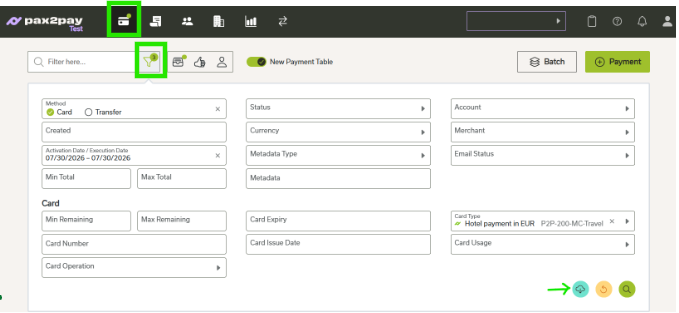
- Navigate to the Payments Room.
- Apply your filters to narrow down results — by Payment Type (Card or Transfer), Activation Date, Merchant, and more.
- Once your filters are applied, a Download button appears. Select it to export the results as a CSV file, , as shown below.
Need help? Raise a ticket with our support team.