When a login attempt is made to the Pax2Pay portal from a new device or location, we may ask you to verify your identity. A message will appear in the portal, and an email will be sent to your registered email address asking you to confirm that the request is genuine.
Why we do this
This extra check helps keep your credentials safe. It works alongside your password and 2FA to help prevent unauthorised access to your account.
When you might be asked to verify
You may be asked to verify your login if you:
- Log in from a new computer, phone or browser.
- Log in from a different network or IP address, such as public Wi-Fi or a VPN.
- Log in from a new or unusual location, such as when you’re travelling.
- Have cleared your browser cookies or are using private or incognito browsing.
What you'll see
When an unusual login is detected, you'll be notified in two places:
- In the portal: After you enter your login details, you’ll see a message asking you to verify the login before you can continue
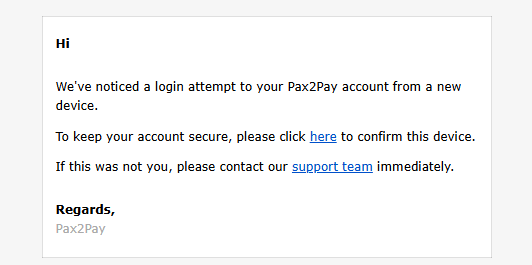
- By email: we'll send an email to your registered email address with details of the login attempt and a Trust this device link to confirm it.
How to verify your login
- Log in to the Pax2Pay portal as usual. If we detect a new device or location, you’ll see the verification message.
- Open the email we've sent to your registered email address.
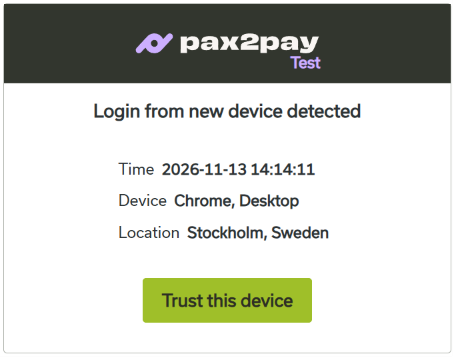
- Check the details of the login attempt to make sure it was you.
- Select “here” in the email to confirm the login.
- Select Trust this device.
- After you select the Trust this device, you will receive this confirmation.
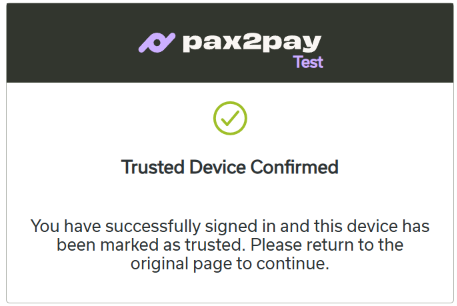
- Return to the portal to continue logging in.
Once you’ve trusted a device, you won’t usually need to verify again when you log in from the same device and location.
If this wasn't you
If you receive a verification email but didn't try to log in, do not select the link or the Trust this device. Instead:
- Change your password straight away.
- Contact our support team or your account manager so we can help secure your account.
Never share verification emails, passwords or 2FA codes with anyone. We will never ask you for them.
FAQs
I haven't received the verification email. What should I do? Check your spam or junk folder, and make sure you're checking the email address registered to your user profile. If it still hasn't arrived after a few minutes, contact our support team.
Why am I being asked to verify again on a device I've used before? This can happen if you've cleared your cookies, switched browsers, or are connecting from a new network or location.
Does this replace 2FA? No. It works alongside your password and 2FA as an additional layer of protection.
If you have any questions, or need to opt out for any reason, please contact our support team or your account manager.